What did the agent touch?
Every change, with its origin
The Agent changes dashboard lists the whole working tree and says who changed each file: an agent, you, or nobody we can name.
Agent changesTCVibe is a fast, portable dual-pane file manager for Windows, built for developers who work with coding agents. Switch between projects in under a second, review every change, and always keep the undo.
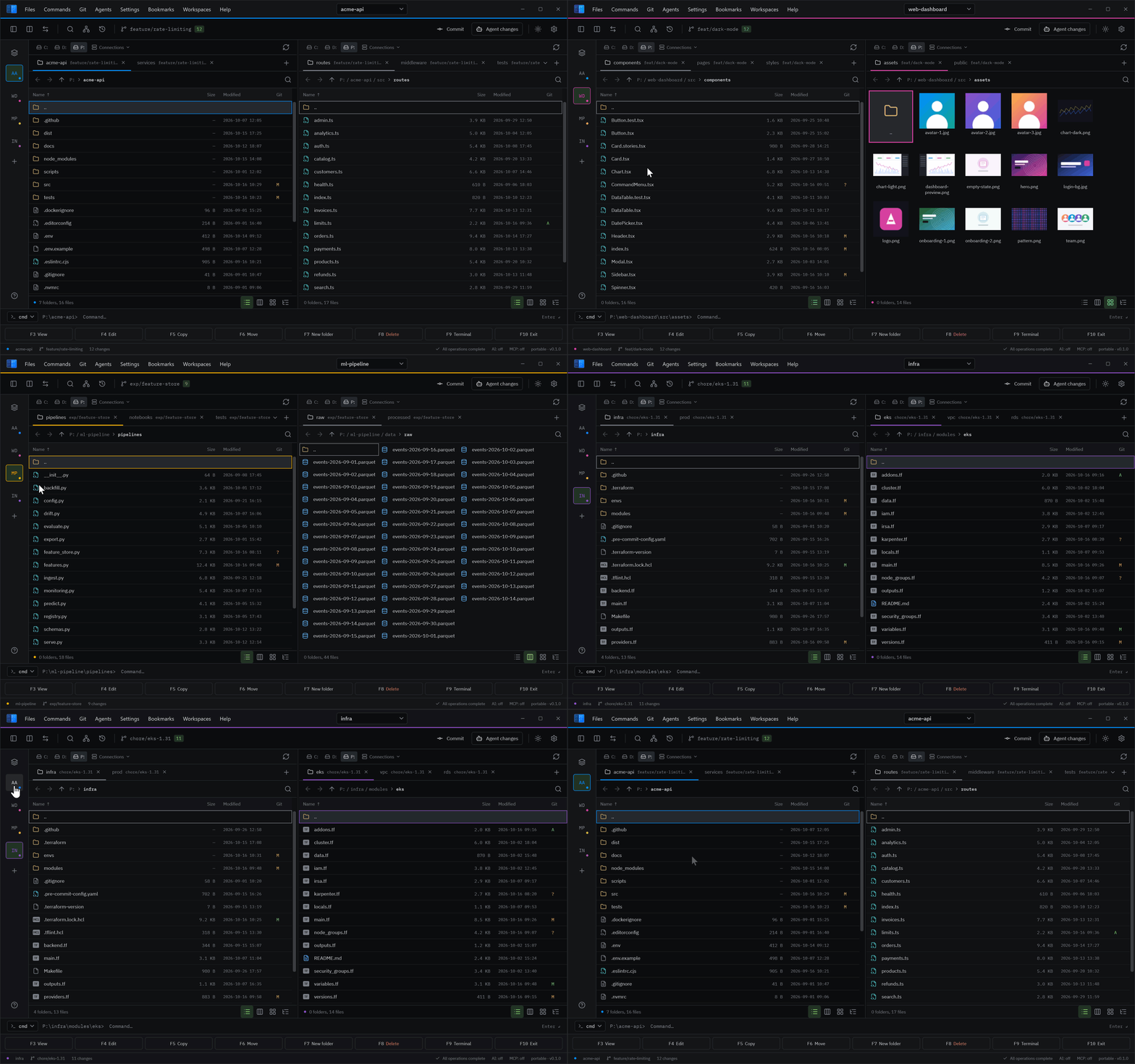
You need to know what changed, where, and whether you can undo it, across several projects at once, each with its own folders, branches and terminals. A dual-pane file manager with an operation log, git and undo is already the right surface for that. TCVibe builds on it.
The Agent changes dashboard lists the whole working tree and says who changed each file: an agent, you, or nobody we can name.
Agent changesPanels, tabs, layout, colour, notes and the terminal command come back together, in under a second.
WorkspacesRevert a file to HEAD, approve agent writes before they happen, and keep an operation log of everything that ran.
Agent writesThe dashboard lists each change with its origin and rolls any of it back in one click. It is honest about the evidence: an approved agent write or the file manager's own log is proof, a change under a running agent session is only a guess.
A workspace is a project's whole context: both panels, every tab, the layout, its colour, notes and terminal command. Jump with Alt+1...9, the Alt+W switcher or the workspace rail.
*.tcvproj file with the repository and the workspace travels with it.A local MCP server hands agents what you are looking at: the selection, listings, file reads and search, even inside archives and open remote panels. When an agent wants to copy, move or delete, you answer first.
# the exact line is in the MCP server tab, token included
> claude mcp add --transport http tcv http://127.0.0.1:12955/mcp \
    --header "Authorization: Bearer <token>"
An agent that calls itself claude-code wants to move 2 files.
"New worktree for a task" creates the branch and the folder, copies .env, runs your setup command and opens a workspace for it. Every worktree sits on one dashboard.
Ctrl+Shift+R launches an agent on a task, and the rest of the loop is already wired up.
Type what needs doing and pick the agent: claude, codex, gemini, aider or your own.
Its own branch, folder and workspace, so parallel agents never step on each other.
The session is recorded. Writes through MCP wait for your Allow.
Open Agent changes Ctrl+Shift+D, diff what it did, keep the good, revert the rest.
Keyboard first, every command and its key in the palette, and the classics you expect from two panels.
Every command and its shortcut, searchable. Chords like Ctrl+K too.
Fuzzy search across the project that respects .gitignore and learns your habits.
ripgrep-class: gitignore, exclude masks, encodings, presets. Inside archives and on servers too.
Syntax highlighting, Markdown and diff. Huge files open instantly, read in windows.
Any OpenAI-compatible endpoint, local Ollama and LM Studio included: commit drafts, summaries, semantic search.
FTP, FTPS, SFTP, WebDAV, S3 and Azure Blob in a tab, with auto-reconnect and a read-only mode.
ZIP, 7z, RAR, TAR, ISO and CAB browse like folders, password-protected ones included.
Copy and move with pause, cancel, retry or skip, and a log of everything that ran.
Under the panels: cd moves the panel, the rest runs in cmd, PowerShell, Git Bash or WSL.
A feature that breaks any of these does not ship.
New features may not slow the cold start or the opening of big folders. Rich but slow is the worst combination.
Works offline, without an account. Settings, workspaces and notes live in data\ next to the program: copy the folder and you have moved everything.
Everything AI is off by default and runs against your own endpoint. Preview first, then undo. Nothing destructive from free text.
They get a machine-readable interface: MCP, structured errors, a deterministic log. You see what they did and can roll it back.
Speed figures are the project's budgets, checked by benchmarks on a typical developer machine.
No installer, no admin rights, your settings never leave the program folder. The .NET runtime is included.
TCVibe-win-x64-Portable.zip from the latest release, or win-x86 for 32-bit Windows.
A projects drive, a USB stick, a synced folder. Settings stay in data\ next to the program and survive updates.
Press F1 to find any command, Ctrl+Alt+W to save the panels as your first workspace.
On the first start Windows may warn about an unrecognised app: the binaries are not code-signed yet. Choose More info → Run anyway, or build it yourself from the repository.
Yes. It is open source under the MIT license: use it at work and at home, read the code, build it yourself.
No. There is no telemetry and no account. TCVibe goes online only when you ask it to: checking for updates, opening a connection, or calling the AI endpoint you configured yourself. AI features are off until you turn them on.
Any agent that can use an MCP server over HTTP, for example Claude Code: the MCP server tab gives you the ready-to-paste line. "Run agent here" and "Launch an agent on a task" find claude, codex, gemini and aider on your PATH, and you can add any other CLI.
The Agent changes dashboard works with every agent, MCP or not: it reads the working tree and the operation log.
Mostly: two panels with tabs, F3 to F8, the operation queue, archives, FTP and multi-rename all work the way you expect. TCVibe is not a clone, though. It focuses on projects, git and agents, and it is an independent project, not affiliated with Total Commander or Ghisler Software GmbH.
Help → Check for updates downloads only what changed and restarts into the new version. Settings, workspaces and notes live in the data\ folder next to the program and are never touched by an update.
Ask questions, share how you work with agents, suggest what TCVibe should do next. The forum needs a free account; the app never does.
Already have an account? Sign in